Lite sign-up: from registration to your first report
Follow the Lite setup path: register → verify email → review the Lite plan → pay → connect Amazon Advertising → accept terms if prompted → open reports. Have access to your email inbox and the Amazon login for the store’s advertising.
How to use this page
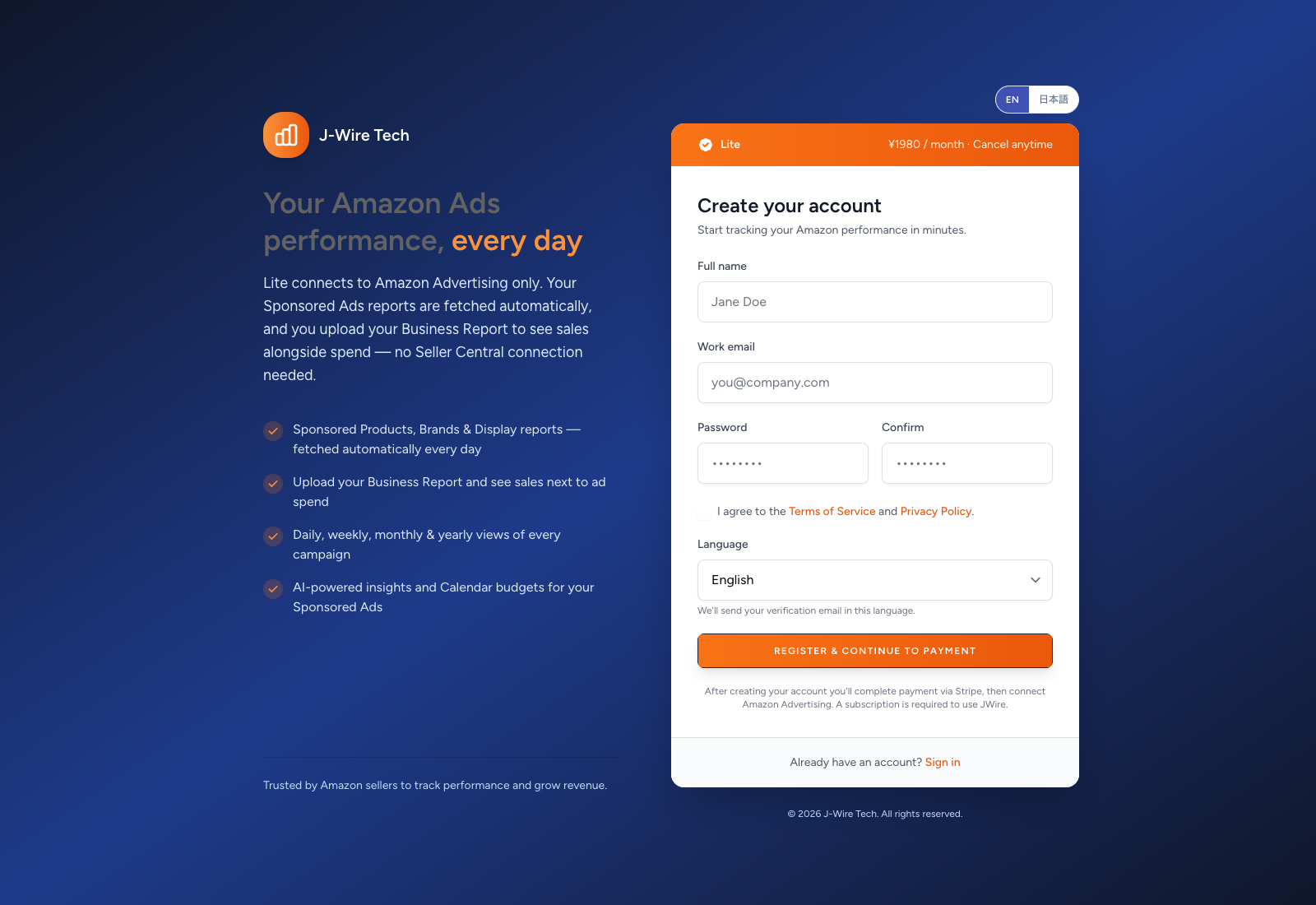
Open ads.j-wire.tech/register and confirm the Lite plan and its current price, currency and billing interval. Sign-up displays the plan offered by Amzsol; it has no edition selector. If the plan shown is unclear, confirm it with support before paying.
Use EN / 日本語 for the page language. Enter your Full name and Work email, then set and confirm a password. Use at least eight characters including uppercase and lowercase letters and a number; follow any validation message if the password is rejected.
Read the Terms of Service and Privacy Policy and select the agreement checkbox. Choose your verification-email language, then select Register & continue to payment. If the email is already registered, use Sign in instead of registering a second account.
Open the verification email and confirm your address. If the email is missing or the link has expired, check spam, confirm the address and use Resend verification email. Use Wrong email? Update it if you entered the wrong address.
On Your plan, review what Lite includes and any optional add-ons offered. Select only the extras you need; leave them unselected for core Lite. Check each charge, the billing interval and the total, then choose Continue to payment. Review the Stripe checkout terms and complete payment only when the plan and charge are correct.
After checkout, follow the return to Amzsol and continue on Connect Amazon. A Payment complete notice may appear there; if a subscription confirmation page is shown instead, use its connect button. If checkout was cancelled, sign in with the same Amzsol account to resume; do not create another login.
Select Connect Amazon Advertising. On Amazon, use the login that can access the intended store’s advertising, review the requested access and approve if correct. Lite has no Seller account connection step in Amzsol.
If Which store is yours? appears, select the available advertising profile that matches your store. Check the name, country, currency, account type and profile identifier before choosing Connect. If only one eligible profile is available, the app can connect it without the picker.
Back in Amzsol, check the Connected status and store name. If the profile selection expired, restart Connect Amazon Advertising. If the wrong store or no suitable profile appears, stop and ask support to review it rather than linking another account.
Choose Go to reports. If a terms-acceptance screen appears, read it and use Accept & go to reports after agreeing. Allow the Sponsored Ads fetch to finish; the connection can be complete before report rows arrive.
For total sales and traffic, download the Business Report from Seller Central and upload it on Files for the matching period. Refresh the dashboard or Sales Tracker after processing. The Lite overview linked below explains the upload and the available features.
Common questions
No advertising profile is available
Confirm that the Amazon login can access the store’s advertising. Profiles already linked to another Amzsol account are not offered as new connections. Contact support to resolve access or an existing link; do not register another Amzsol account to bypass it.
Several profiles are listed
Pick only the store you intend to connect and verify its country, currency and profile ID. Cancel — save nothing leaves the pending selection unsaved. If uncertain, cancel and confirm the correct profile with your administrator.
Payment succeeded but setup is unfinished
Sign in with the same Amzsol account and continue its setup. Check the subscription status before attempting another payment. Contact support with the account email and checkout time if the expected subscription is not recognised.
Ads data arrived but business sales did not
Lite fetches Sponsored Ads automatically. Total business sales and sessions depend on the Business Report you upload on Files. Check the report’s dates, ASINs and processing status.